Getting Started
This guide will help you configure and set up your Innosend integration after installation.
Before You Begin
Make sure you have:
- Completed the installation process
- An active Innosend account
- Your API credentials from the Innosend Dashboard
Step 1: Obtain your API Token
- Log in to your Innosend Dashboard
- Navigate to Settings → API Keys
- Create a new API Token and copy it
Single token for all features
One API Token covers the API connection, pickup points, and all other features. No separate API Key or API Secret is required.
Step 2: Configure API Connection
- In your Magento admin, go to Stores → Configuration → Innosend → API Configuration
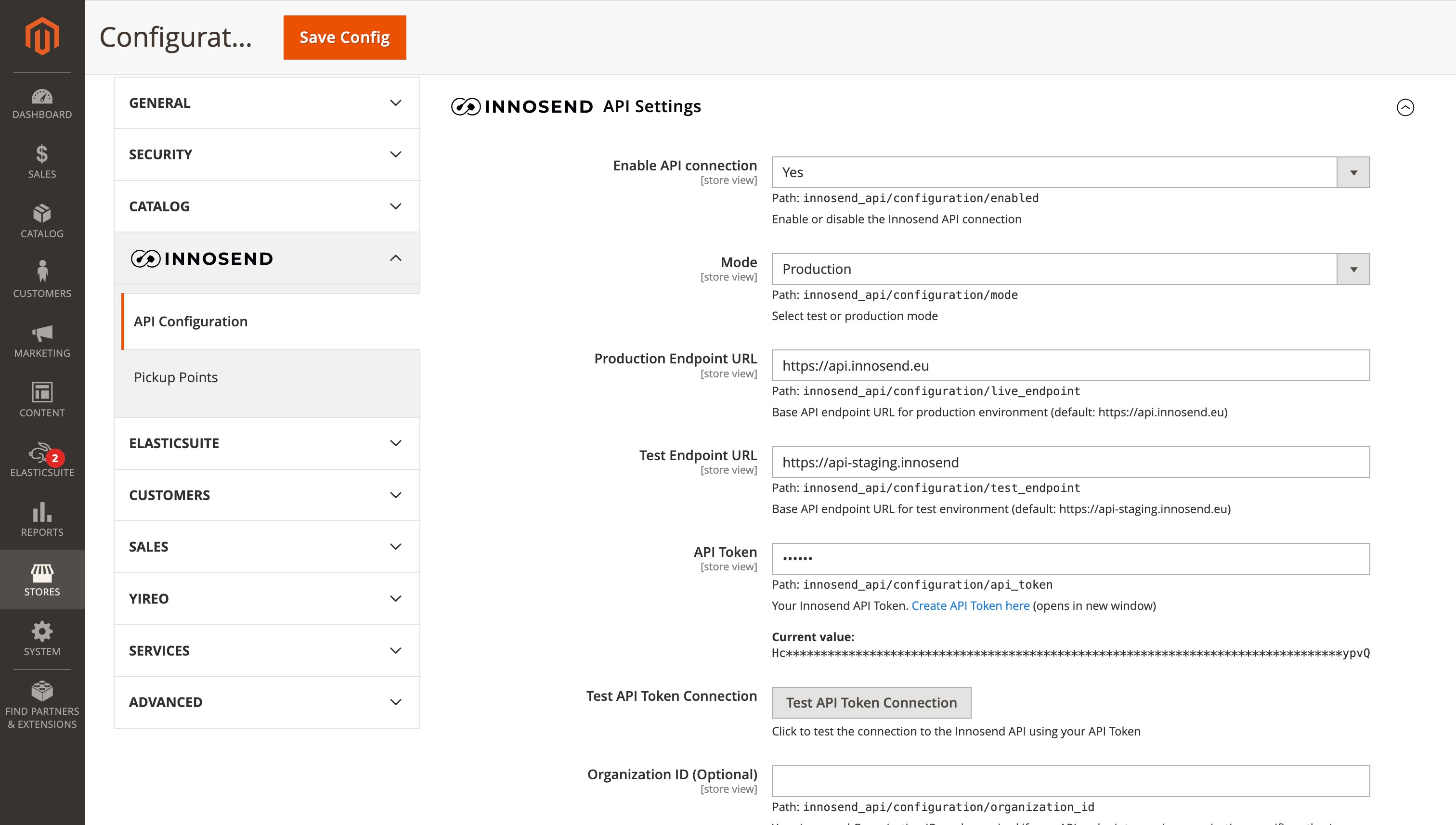
- Configure the following settings:
| Setting | Description |
|---|---|
| Enable API Connection | Set to "Yes" to activate the integration |
| Mode | Select "Test" for testing or "Live" for production |
| API Token | Paste the token from your Innosend Dashboard |
-
Click Save Config
-
Click Test API Token Connection to verify
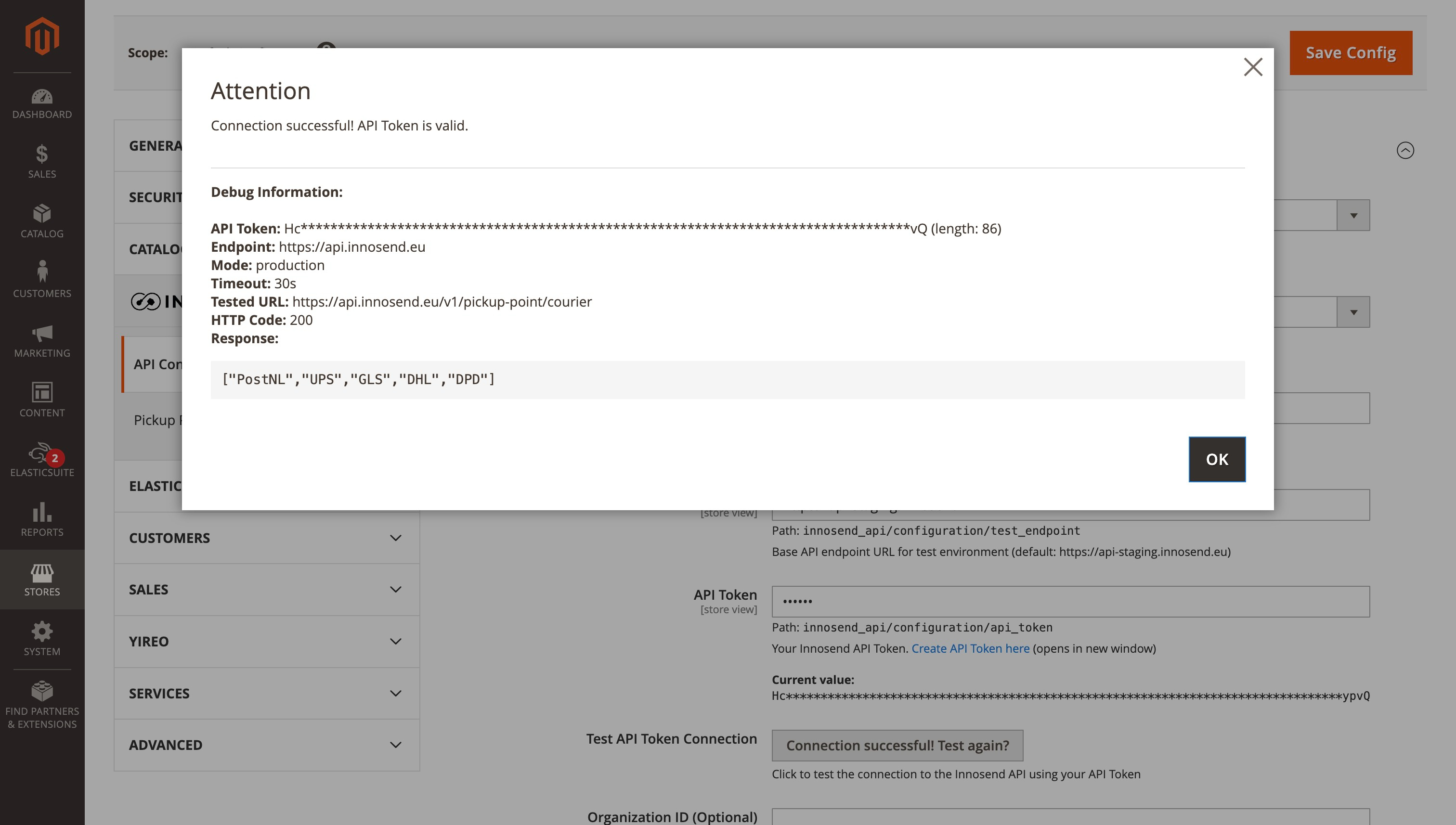
Test Mode
Always start with Test Mode to ensure everything works before switching to production.
Step 3: Configure Pickup Points (Optional)
If you want to use pickup point selection in checkout:
Configure Pickup Points Settings
- Go to Stores → Configuration → Innosend → Pickup Points
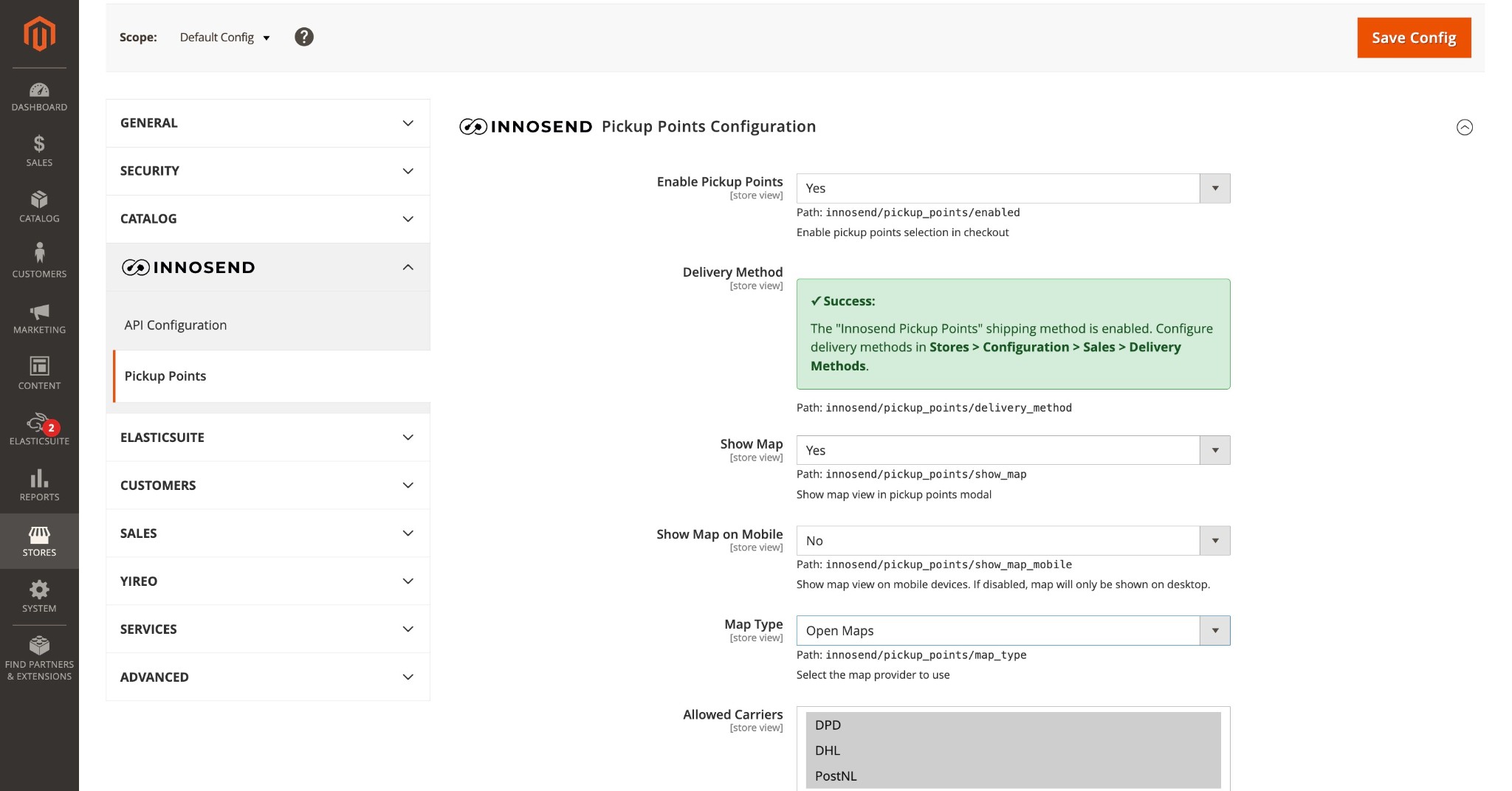
- Configure:
| Setting | Description |
|---|---|
| Enable Pickup Points | Set to "Yes" |
| Show Map | Enable map view in the pickup points modal |
| Show Map on Mobile | Show/hide map on mobile devices |
| Map Type | Choose between OpenStreetMap (free) or Google Maps |
| Allowed Carriers | Multi-select: choose which carriers to show. Only selected carriers appear; others are excluded from pickup points. |
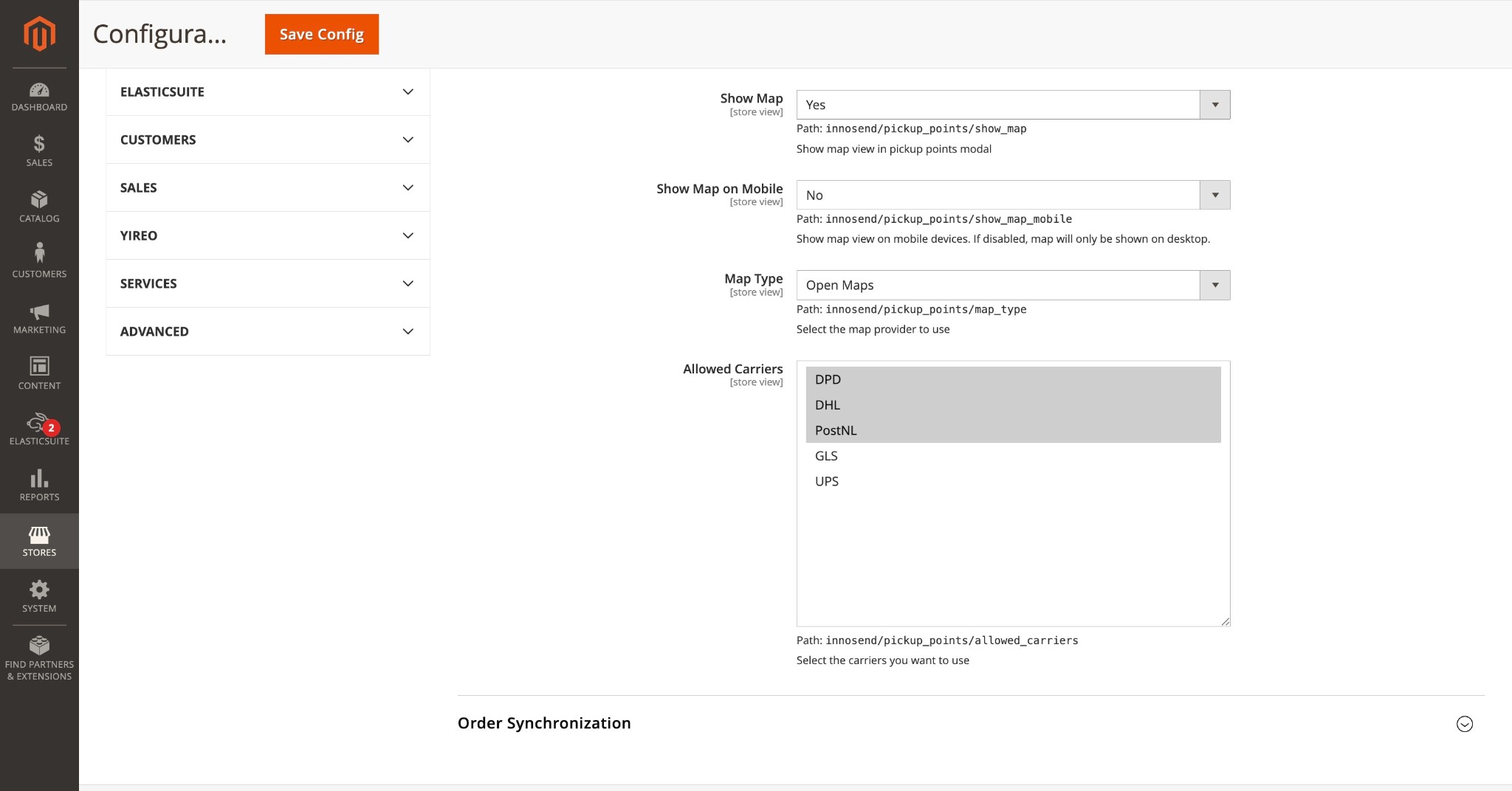
- Save Config
Configure Shipping Method
- Go to Stores → Configuration → Sales → Shipping Methods
- Expand Innosend Pickup Points
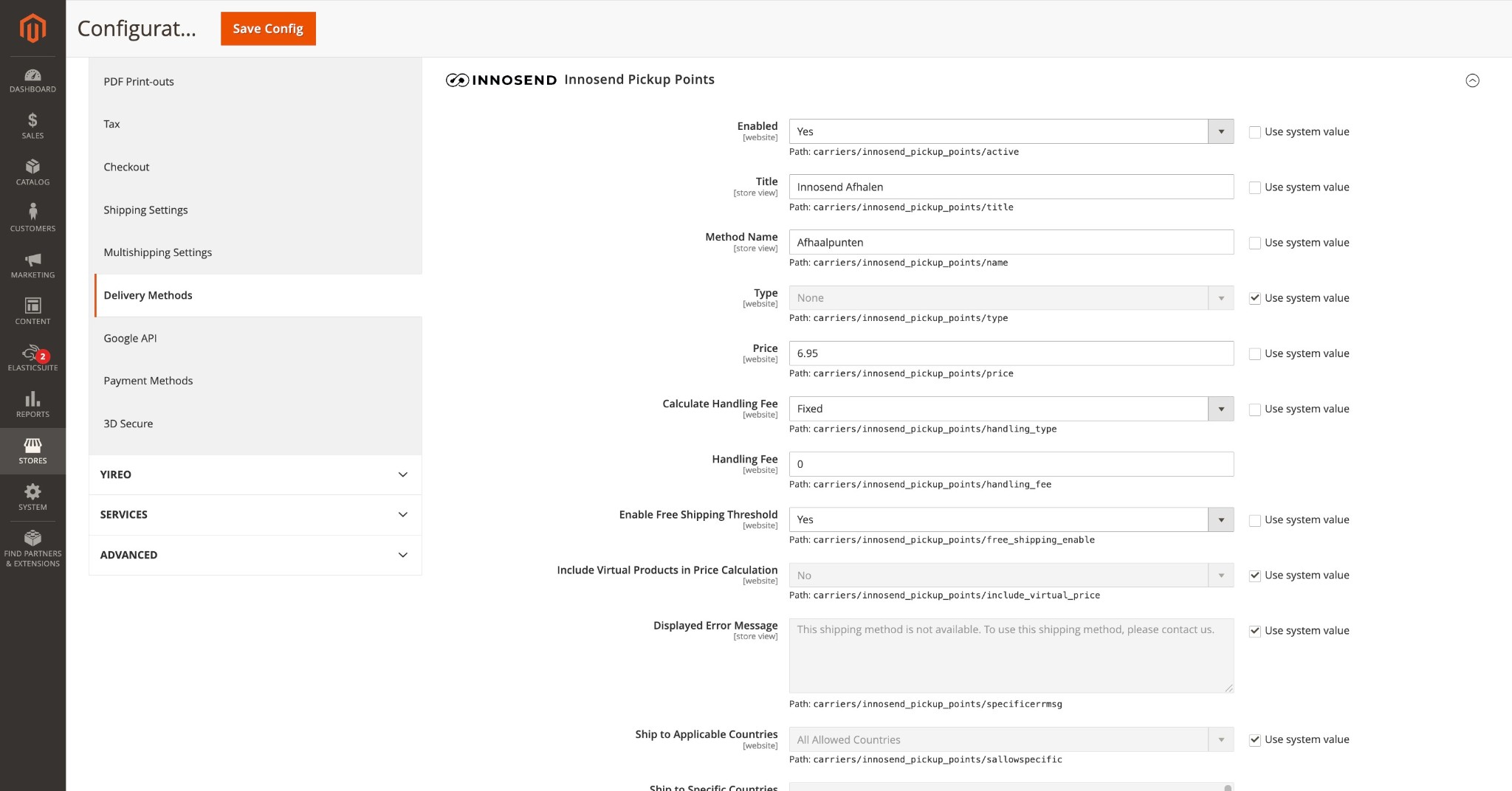
- Configure:
| Setting | Description |
|---|---|
| Enabled | Set to "Yes" |
| Title | Display name (e.g., "Pickup Point") |
| Method Name | Shipping method name |
| Price | Base shipping price |
| Free Shipping Threshold | Order amount for free shipping (optional) |
| Ship to Applicable Countries | Countries where pickup points are available |
- Save Config
Google Maps Configuration (Optional)
If you choose Google Maps as your map provider:
- Create an API key in Google Cloud Console
- Enable the Maps JavaScript API
- Create a Map ID in Google Maps Studio
- Enter both values in the Pickup Points configuration
Step 4: Configure Order Synchronization (Optional)
To automatically sync orders with Innosend:
-
Go to Stores → Configuration → Innosend → Order Synchronization
-
Configure:
| Setting | Description |
|---|---|
| Enable Order Sync | Set to "Yes" |
| Automatic Sync | Automatically sync orders when placed |
| Sync on Order Place | Sync immediately when order is placed |
| Retry Failed Syncs | Enable retry for failed synchronizations |
| Max Retry Attempts | Number of retry attempts (default: 3) |
| Enable Status Sync | Sync tracking and status updates from Innosend |
| Status Sync Interval | How often to check for status updates (minutes) |
- Save Config
Step 5: Clear Cache
After making configuration changes, always clear the cache:
Or via admin: System → Cache Management → Flush Cache Storage
Step 6: Test Your Setup
Test API Connection
- Go to Stores → Configuration → Innosend → API Configuration
- Click Test API Token Connection
- You should see a success message confirming the token is valid
Test Pickup Points
- Add a product to cart
- Go to checkout
- Enter a shipping address
- Select the "Pickup Point" shipping method
- Verify that pickup points are loaded
- Select a pickup point
- Complete the order
Test Order Sync
- Place a test order
- Check the Innosend Dashboard for the order
- Verify order details are correct
Quick Configuration Summary
Here's a summary of all configuration paths:
| Feature | Configuration Path |
|---|---|
| API Connection | Stores → Configuration → Innosend → API Configuration |
| Pickup Points | Stores → Configuration → Innosend → Pickup Points |
| Order Sync | Stores → Configuration → Innosend → Order Synchronization |
| Shipping Method | Stores → Configuration → Sales → Shipping Methods → Innosend Pickup Points |
Next Steps
- Configuration Reference - Detailed explanation of all settings
- How to Use - Guide for daily operations
- Troubleshooting - Common issues and solutions
Need Help?
If you encounter issues during setup:
- Check the Troubleshooting guide
- Review Magento logs in
var/log/ - Contact Innosend support at support@innosend.eu